
Introduction: The Need for Cross-Platform Parental Control
Here’s a situation a lot of parents find themselves in: your kid has an iPhone, you have an Android, and suddenly you’re wondering how do you stay involved in your child’s digital life when you’re not even on the same platform? It’s a real, practical problem – and it’s becoming more common every year as kids get their first iPhone at a younger age.
The truth is, digital safety isn’t something you can just set and forget. Families today need real tools for online protection – things that actually limit inappropriate content, manage app access, and keep a close eye on how your child is spending their time online. That’s not being overprotective. That’s good parenting in a connected world.
The tricky part? Finding a parental control iPhone from Android solution that actually works across both platforms. Managing iPhone and Android devices together can feel like navigating two completely different worlds. You want solid parental monitoring, straightforward screen time controls, and something that builds healthy digital habits – without you having to manually check in every single day.
That’s exactly what this guide covers. We’ll walk you through what works, what to realistically expect, and which tools give Android-using parents a genuine grip on their child’s iPhone activity. No fluff, no overcomplicated setups – just clear, practical answers so you can make the right call for your family.
The Challenge: Managing iPhone Parental Controls from Android
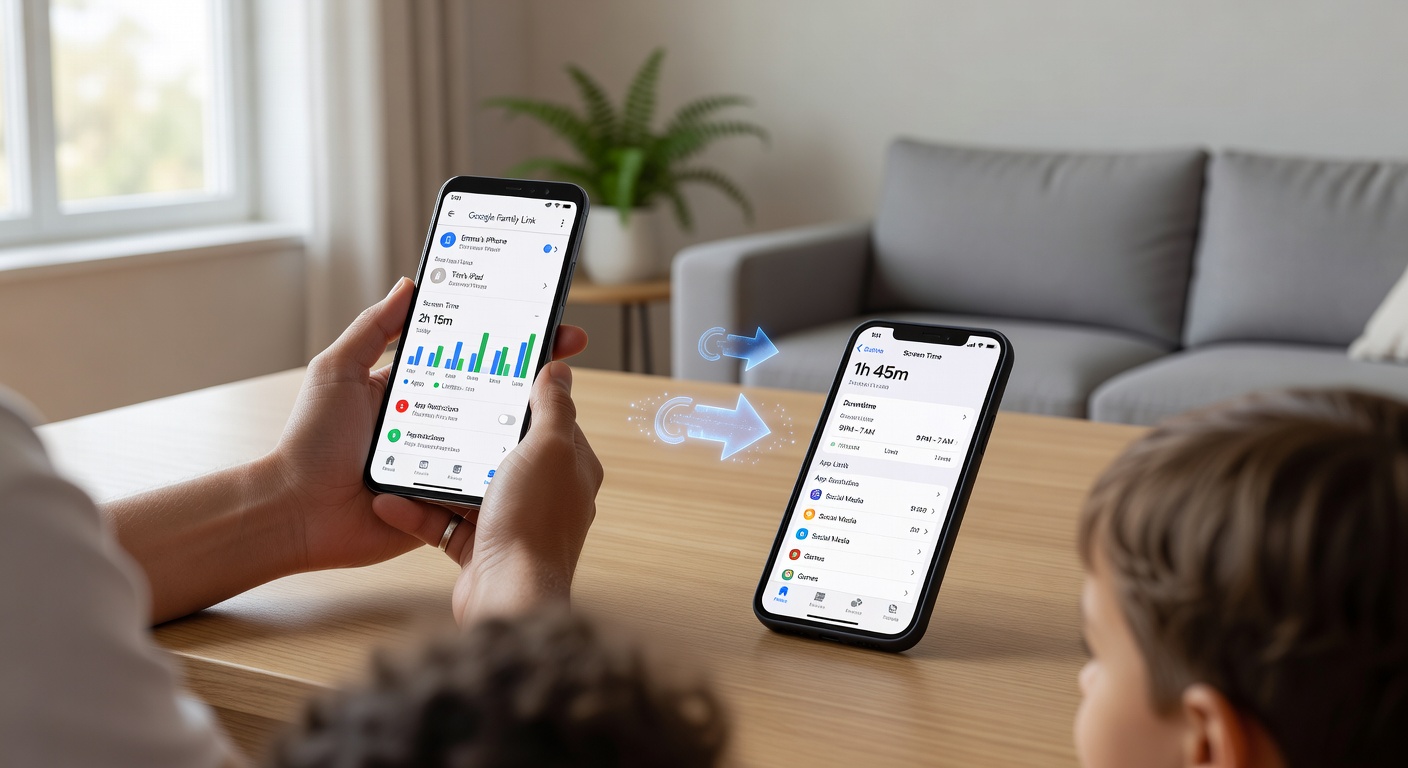
Here’s the hard truth: Apple’s built-in parental controls were built for the Apple ecosystem first and everything else second. Android compatibility? That’s basically an afterthought. One competitor’s FAQ spells it out bluntly – you cannot manage iPhone Screen Time from Android without another Apple device. And that creates a very real cross-platform dilemma for any parent rocking an Android phone while trying to keep tabs on their kid’s iPhone.
Think about features like Screen Time, Family Sharing, and the Family Group setup. They all assume Apple-to-Apple access when it comes to remote management. So if you’re on Android, you’re already at a disadvantage before you even get started. You’ll hit syncing issues constantly, find that half the controls are locked off, and have no clean way to adjust restrictions when you need to – say, from a work meeting or the car pickup line. It’s slow, it’s frustrating, and it signals a genuine demand for cross-platform solutions that actually work across both operating systems without the runaround.
Built-in iPhone Parental Controls: Screen Time Overview
Screen Time is Apple’s built-in parental control system for iPhone, iPad, and other Apple devices. It gives parents a real way to manage how kids use their devices – setting time limits, blocking inappropriate material, and locking down privacy options. Getting started is simple: open the Settings app, tap Screen Time, and follow the on-screen setup. From there, you can switch on Content & Privacy Restrictions and create a 4-digit passcode for solid passcode protection, making sure your kids can’t just go in and undo everything you’ve set up.
- Content restrictions: Filter web content, block explicit media, and keep things limited to age-appropriate content your child should actually be seeing.
- App limits: Set daily time limits for categories like games, social media, or entertainment – and layer on specific app restrictions where you need tighter control.
- Privacy settings: Decide who gets access to location data, contacts, photos, and the microphone. You stay in control of the sensitive stuff.
- Downtime and communication controls: Block device use during set hours and manage exactly who your child can and can’t reach.
One thing worth knowing: both setup and day-to-day management happen through an Apple device. That said, if your family is already living in Apple’s ecosystem, Screen Time is a genuinely convenient, zero-extra-cost tool for everyday parental controls.
Limitations of Screen Time for Android Users
Apple’s Screen Time is built for Apple’s world – and that creates some real headaches for families who mix Android into the picture. The biggest sticking point is the Apple device requirement: to manage controls properly, parents typically need another Apple device sitting in the same Family Group. No Apple phone? Then there’s simply no remote Android access for tweaking limits, approving requests, or changing settings on the fly.
- The Family Sharing dependency keeps everything locked to Apple accounts and Apple hardware – no exceptions.
- Management restrictions mean Android parents can’t just pull out their phone and update the rules whenever life gets busy.
- Without an Apple device of your own, you’re stuck physically picking up your kid’s iPhone or iPad to make any changes – which gets old fast.
- Syncing across devices runs smoothly inside Apple’s ecosystem, but the moment Android enters the home, that experience gets noticeably bumpier.
The truth is, for households running on Android, this whole setup can feel pretty limiting – especially when you compare it to parental control tools that were actually designed with cross-platform management in mind from day one.
Cross-Platform Solutions: Third-Party Parental Control Apps
If your family runs a mix of devices, third-party apps are what actually close the gap that built-in tools tend to leave wide open. Services like Kids360, OurPact, Bark, and Aura are built from the ground up with multi-platform support in mind – making them a genuinely smart pick for any parent who needs real iOS and Android compatibility without the constant juggling act.
Think about it. Instead of logging into two completely separate systems to manage an Android phone and an iPhone, these apps pull everything into one dashboard. That single change solves the biggest headache of cross-platform parenting: keeping the same rules in place no matter which operating system your kid happens to be using.
Here’s what you typically get with these tools – unified controls for households running a mix of devices, solid screen time limits and app management, location tracking with real-time alerts, and monitoring features that go well beyond anything baked into Android or iOS by default.
That last point is worth sitting with. Default settings on Apple or Android devices are a starting point, not a finish line. For parents who want more flexibility and tighter oversight, third-party apps like these consistently go further – and that extra reach can make a real difference in your day-to-day peace of mind.
Kids360: A Top Choice for Parental Control on iPhone from Android
If you’re an Android user trying to manage your child’s iPhone, Kids360 is genuinely one of the best options out there. It doesn’t just give you basic oversight – it hands you a full toolkit built around real family life. The core Kids360 features cover everything from time limits and sleep schedules to YouTube activity monitoring, app usage statistics, and real-time geolocation. On top of that, you get solid app blocking and smart notifications that actually keep you in the loop the moment something comes up.
Here’s what really sets it apart from the crowd. Most parental control apps are purely restrictive – your kid hits a limit, and that’s it. Kids360 takes a smarter approach with its task-based earning model, where children can unlock extra screen time by completing physical exercises or household tasks through chore integration. It turns what could be a daily argument into something cooperative. Kids feel a sense of control, and parents get the behavior they’re actually looking for. That’s a big reason the app has built such a loyal following, with over 1 million downloads, 4-star+ ratings across app stores, and consistently strong user reviews.
Advantages
- Cross-platform support – works seamlessly for Android parents managing a child’s iPhone.
- A genuinely comprehensive feature set: screen time limits, YouTube controls, sleep schedules, app usage stats, real-time geolocation, app blocking, and deletion protection.
- The task-based earning system with physical exercises and chore integration rewards good habits rather than just punishing screen use.
- Proven track record backed by millions of downloads and outstanding user reviews.
Disadvantages
- Some of the more advanced tools sit behind a paywall, so subscription fees are worth factoring into your decision.
- With so many features packed in, there’s a real learning curve for parents who are new to parental control apps.
- A few iPhone-specific restrictions depend on iOS permissions, which is a limitation tied to Apple’s platform rather than the app itself.
Step-by-Step Guide: Setting Up Kids360 on iPhone from Android
Setting up Kids360 to manage your child’s iPhone from your Android phone is actually pretty simple. The full setup process is built to be fast – and for most parents, it really does work as a 5-minute install. Here are the exact installation steps you need to get through linking devices smoothly and complete your parental control configuration without any headaches.
Step 1: Download Kids360 on Your Android Device
Start on your own phone. Open the Google Play Store, search for Kids360, and tap install. This becomes your main dashboard – the place where you monitor activity, set rules, and manage your child’s device from a distance.
Step 2: Install Alli360 on Your Child’s iPhone
Now grab your child’s iPhone and open the App Store. Search for Alli360 – this is the companion app that makes the iOS connection possible – and install it. Without it, Kids360 has no way to talk to the iPhone or apply any of the parental control settings you configure.
Step 3: Create Your Account and Connect Both Devices
Open Kids360 on your Android, create an account, and follow the on-screen prompts to start linking devices. Then switch to the iPhone, open Alli360, and connect it to that same Kids360 account. Double-check that both apps are signed in correctly – that’s usually all it takes for the pairing to go through cleanly.
Step 4: Configure Parental Controls
With both devices connected, you’re ready for the final configuration stage. Inside Kids360, you can set up controls like:
- Time limits for daily device use
- App blocks for specific apps you want restricted
- Schedules for study time, bedtime, or screen-free windows
Once those settings are in place, your Android becomes the control center for everything happening on your child’s iPhone. The whole setup process takes most families just a few minutes from start to finish.
Alternative: Using Built-in Controls with Apple Family Sharing
Already in the Apple ecosystem? Then you can manage your child’s iPhone directly through Family Sharing and Apple’s built-in parental controls – no third-party app needed. Start by making sure both the parent and child devices are running the latest iOS version and that each person is signed in with their own Apple ID. From there, go into Screen Time settings and switch on Share Across Devices so your limits and reports stay consistent across multiple Apple devices.
The setup itself is pretty straightforward. Open your Family Group inside Family Sharing, select your child’s account, and enable Screen Time. From there you can dial in downtime schedules, app limits, content restrictions, and communication rules – all from your own device. Just make sure Screen Time sync is active, because without it your monitoring data won’t be reliable.
This approach works really well for families running iPhones, iPads, or even a mixed-device household where the parent still has Apple access. That said, it is not practical for Android-only parents – this one is firmly inside the Apple fence.
Customizing and Managing Your Parental Controls
Once parental controls are up and running, it is time to get into the customization. Both Kids360 and Apple’s Screen Time let you dial in the restrictions to match your child’s age, habits, and daily routine. The goal here is not to lock everything down. It is to build rules that actually work for your family.
- iTunes purchases: Control whether your child can install or delete apps, trigger in-app purchases, or buy media.
- Allowed apps: Pick which built-in or downloaded apps stay accessible – and which ones disappear from view.
- Content filters: Block explicit music, movies, TV shows, books, and websites, and keep a close eye on web content access.
- Privacy settings: Decide which apps get to use location services, contacts, photos, the microphone, and other sensitive data.
- Siri restrictions: Cut off web search results or explicit language coming through Siri.
With Screen Time, you handle all of this inside Content & Privacy Restrictions. Kids360 takes things a step further. You can set schedules around study time, bedtime, or breaks, and put app limits on specific games or social media apps your kid keeps gravitating toward. That said, no setup is ever truly “finished.” Review your settings on a regular basis – because as your child grows, school demands shift, and new apps creep into their daily routine, the rules that worked last year probably need a refresh.
Frequently Asked Questions (FAQs)
-
Can I manage iPhone parental controls from my Android device?
Not if you’re relying on Apple’s built-in tools – those simply won’t work that way. But management from Android is absolutely possible with Kids360, because the app was built with cross-platform support in mind. So if you’re an Android user and your kid is on an iPhone, you’re covered. -
How long does Kids360 take to install?
Not long at all. The average setup time is around 5 minutes. Download the app, connect your child’s device, tweak a few settings – and you’re done. It’s genuinely that quick. -
Can my child delete the app?
No. Kids360 has built-in protections against app deletion, which means your child can’t just uninstall it the moment you look away. The limits and monitoring features stay in place. -
Can I add additional users?
Yes – and it’s flexible. Kids360 supports additional users by letting you connect unlimited child devices and even add a free second parent profile. That’s a real win for larger families or anyone navigating a co-parenting setup. -
What’s the best way to keep kids safe online?
Honestly, there’s no single answer. Real digital safety comes from combining open, honest conversations with your child and using solid parental control tools. The tech handles screen time, app access, and online habits – but the talks you have build the trust and judgment that actually stick long-term.
These FAQs hit the questions most parents ask before committing to a parental control app – things like installation, cross-platform support, protection against app deletion, and how family access actually works in practice.
Conclusion: Empowering Parents with Effective Control
Parental controls matter because they help families protect screen time, support digital health, and guide children toward healthy habits. Apple’s built-in iPhone tools do a decent job within their own ecosystem – but they hit a wall the moment you need to monitor or manage an Android device. For mixed-device families, that gap is real, and it’s exactly where dedicated safety tools prove their worth.
That’s where cross-platform apps like Kids360 shine. Their cross-platform success comes down to giving you clearer oversight, genuine flexibility, and a practical path toward proactive parenting – no matter which devices your kids are using. The right setup isn’t just about locking things down, either. It’s about teaching balance and consistency, and building the kind of lifetime habits your children will actually carry with them as they grow.
So take action. Find a solution that fits your family’s real life. With Kids360, you can build solid daily routines, reinforce those healthy habits, and get back a little peace of mind – starting today.