
Why You Might Need to Monitor Your Child’s iPhone Text Messages
Kids typically start texting around age 8 – which catches a lot of parents off guard. Texting itself isn’t a bad thing. It helps children stay connected with family, build real friendships with peers, and sharpen their communication skills in a way that actually feels natural to them.
That said, the risks are real. A child’s iPhone messages can expose them to cyberbullying, scams, inappropriate content, and contact from strangers or worse. Even totally normal-looking conversations can turn harmful fast – children get pressured by peers, pulled into unsafe group chats, or slowly manipulated into sharing personal information. Without a solid parental control approach in place, these things can go unnoticed for a long time.
So it’s no surprise that parents ask: how can I see my child’s text messages on iPhone? The truth is, monitoring isn’t about being suspicious of your kid. It’s about improving their safety, catching warning signs before they escalate, and helping them build healthier habits around texting while they’re still figuring things out.
In this article, we walk you through practical methods for monitoring text messages on an iPhone – from Apple’s built-in tools to dedicated parental control apps. The goal is straightforward: give you the information you need to protect your child while keeping communication open and trust intact.
Is It Possible to See Your Child’s Text Messages on iPhone?
Yes, you absolutely can see your child’s text conversations on an iPhone – and it is easier than most parents think. A combination of built-in Apple features and third-party parental tools makes this entirely doable. For most families, this kind of iPhone monitoring is not about spying. It is about knowing who your child is talking to, catching warning signs before they escalate, and making smarter calls as a parent.
Unchecked texting causes real problems. Kids can become withdrawn, hide harmful interactions, or start chatting with strangers without any real grasp of the danger involved. In serious cases, unsupervised messaging opens the door to bullying, manipulation, or grooming. That is exactly why so many parents are actively looking for safety measures that give them better visibility into their child’s daily communication – not to control, but to protect.
Depending on your setup, you have several solid options. You can review messages through the Apple ecosystem using shared accounts or backups, or go with dedicated monitoring apps that give you remote access to detailed activity reports. The right approach really comes down to your child’s age, how concerned you are, and how much oversight feels right for your family. In the sections ahead, we will walk you through the most effective methods for tracking text activity on iPhone and help you find the best parental tools that actually fit your situation.
5 Effective Methods to Monitor Your Child’s Text Messages on iPhone
Every family is different. What works for a 10-year-old won’t necessarily work for a 16-year-old, and the level of parental supervision you need today might look completely different six months from now. That’s exactly why this step-by-step guide covers five real, practical monitoring methods – because there’s no one-size-fits-all answer here.
The options we’re walking through range from Apple’s own built-in tools to dedicated third-party apps like mSpy. Some are simple and take five minutes to set up. Others give you deeper text message access and more granular control. It really comes down to your child’s age, your household’s trust dynamic, and how much visibility you actually need.
Here’s a quick look at what’s covered in this guide:
- Native Apple features for basic oversight and account-based controls
- Screen Time and Family Sharing for broader device management
- iCloud-related options that may provide limited text message access
- Carrier or account-level tools for additional visibility
- Third-party monitoring apps like mSpy for more advanced tracking features
Each section below includes clear iPhone tips, straightforward setup notes, and honest, realistic use cases. By the end, you’ll know exactly which method fits your situation – and how to get it running.
Method 1: Use mSpy for Comprehensive iPhone Text Monitoring
mSpy is honestly one of the most complete tools out there for parents who want real, meaningful iPhone parental controls – not just surface-level filtering. With over 30 monitoring features packed into a single platform, it gives you a practical, no-nonsense way to track text messages, iMessage activity, contacts, shared media, and a whole lot more from one secure dashboard. Worried about risky conversations happening behind your back? mSpy lets you see sent and received messages, get a clear picture of who your child is actually texting, and catch warning signs early – before a small problem turns into a serious one.
Setup is refreshingly straightforward and you don’t need any technical background to get through it. Here’s how to get started:
- Create an account on the official mSpy website.
- Choose a subscription plan that fits your needs and select the correct device type for the target iPhone.
- Follow the installation instructions sent directly to your email. The specific installation steps will vary slightly depending on which setup method is recommended for that particular device.
- Log in to the dashboard and head straight to the Text Messages tab to start reviewing chats and message details.
Once it’s up and running, mSpy goes well beyond basic SMS logs. You can dig into full iMessage conversations, review attachments like photos and videos, and use visual tools such as screenshots and screen recording to get real context around what’s being shared. One feature that genuinely stands out? Deleted messages can still show up through recorded screen activity. So if your child wipes a conversation to hide something, that evidence isn’t necessarily gone for good.
- See deleted messages: Screen capture tools and screen recording can surface chats that have already been removed from the phone.
- Track sensitive topics: Set up restricted words tied to cyberbullying, self-harm, or adult content and get instant alerts when that kind of language pops up.
- Monitor attachments: Review everything that’s being shared to flag anything inappropriate or potentially risky.
- Identify frequent contacts: See exactly who your child is texting most – because patterns matter.
On top of message monitoring, mSpy also covers call monitoring and location tracking, which adds a genuinely useful extra layer of family safety. If you want to combine message oversight with broader digital protection all in one place, mSpy is a strong, well-rounded option for iPhone monitoring.
Method 2: Access Child’s Text Messages via iCloud Sync
Want to sync messages from your child’s iPhone and read them on your own Apple device? iCloud actually has a built-in way to do this. It can support remote monitoring because once you turn on Messages in iCloud, new texts start appearing on any other signed-in device automatically. The catch is that you need physical access to the child’s iPhone upfront – and their Apple ID login details.
- Step 1: Open Settings on the child’s iPhone, tap their Apple ID at the very top, then go into iCloud.
- Step 2: Scroll until you find Messages, then switch on Use on this iPhone.
- Step 3: Tap Sync Now right after enabling it. This pushes all the conversations up and stores messages in iCloud.
- Step 4: On your own iPhone or Mac, sign in with the child’s credentials. Once iCloud Messages sync is running on that device too, all the synced conversations will be right there for you to read.
The setup is straightforward, and that is honestly its biggest selling point. After the initial configuration, it acts as a simple, no-frills form of remote monitoring – no separate app needed, and message history stays updated across every device tied to the same account. For parents already deep in the Apple ecosystem, this feels like a natural fit.
That said, the limitations are real. You must have physical access to the child’s iPhone to enable iCloud Messages, and Apple will often fire off a confirmation code to a trusted device or phone number the moment someone signs in. Because of this, your child might spot the login attempt or get a security alert on their end. So treat this as a tool for open, transparent parental oversight – not secret surveillance. It works best when paired with honest communication about why you are monitoring in the first place.
Method 3: Set Up Apple’s Text Message Forwarding Feature
Apple’s Text Message Forwarding feature lets you receive a child’s incoming messages on another Apple device – whether that’s an iPhone to Mac setup, a spare iPad, or a second iPhone. It’s honestly one of the simplest built-in routes for SMS forwarding out there. That said, this is not true remote access. You’ll need the child’s Apple ID credentials and physical access to their device to get it running.
- Step 1: Open Settings on the child’s iPhone, scroll down to Messages, and tap Send & Receive. Take note of which Apple ID and phone number are currently linked to iMessage.
- Step 2: On your own Apple device, sign in to iCloud using the child’s credentials. This ties your device into the same Apple messaging ecosystem.
- Step 3: Head back to the child’s iPhone, go to Settings > Messages, and tap Text Message Forwarding. Your device should now show up in the list – tap it to enable message syncing.
- Step 4: Apple will push a verification code to the child’s iPhone. Just enter that code on your device and the setup is done.
Once it’s active, all incoming messages on the child’s iPhone can land on your device too. If you want a built-in monitoring option without touching any third-party software, this gets the job done. But there are real limits here. The setup process throws up visible prompts, and any observant kid will likely spot the changes in their message settings or notice an unfamiliar linked device.
The truth is, this method works fine for basic SMS forwarding – but invisible it is not. Because you have to configure it directly on the target phone, it can easily tip off the child, and it simply doesn’t give you the depth of stealth or control you’d get from a dedicated parental monitoring tool.
Method 4: Utilize Family Sharing and Screen Time Controls
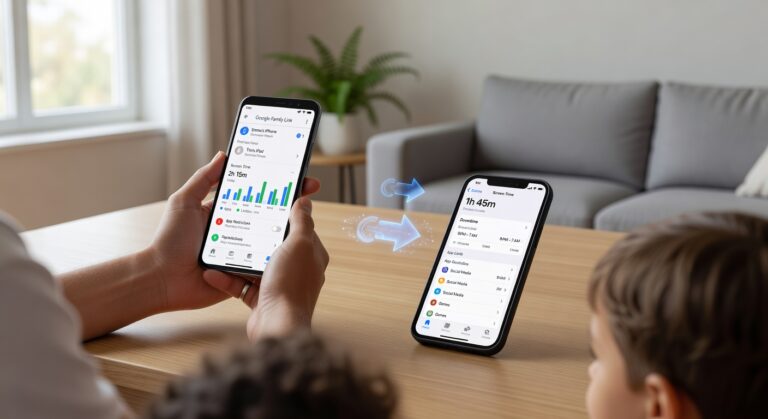
If your child has an iPhone, Family Sharing and Screen Time give you a built-in way to supervise texting without downloading a single extra app. Think of this as parental guidance rather than secret surveillance. You set the boundaries, your child keeps their privacy within those limits, and nobody has to do the awkward daily phone check.
- Step 1: Open Settings → [Your Name] → Family Sharing → Add Member and invite your child through their Apple ID.
- Step 2: Head to Settings → Screen Time → [Child’s Name] → Turn On Screen Time.
- Step 3: Tap Communication Limits to control exactly who your child can text or call during active screen time and during downtime hours.
Inside Communication Limits, one of the most useful options is Contacts Only. It quietly blocks conversations with unknown numbers, which is a real win for younger kids who genuinely do not need unrestricted texting access yet. On top of that, you can layer in content restrictions to block apps, filter websites, and approve or deny purchases straight from the App Store – all from one place.
The convenience factor here is hard to beat. Instead of asking for the phone every single day, you manage the core safety settings directly from your own device. Fewer arguments. More consistent rules around texting, calling, app access, and browsing. For families who want a lighter-touch solution, Apple’s tools honestly cover the basics pretty well.
Used the right way, this whole setup actually builds trust rather than quietly eroding it. Be upfront with your child – tell them what rules are active, explain why certain contacts or apps are limited, and sit down together to review the settings as they get older. That’s what turns Family Sharing and Screen Time from a spying tool into a transparent, practical system for managing digital boundaries.
Method 5: Check Synced Apple Devices Like iPad or Mac
If your child uses more than one device in the Apple ecosystem, there’s a solid chance their iMessages show up across all their synced devices. In practice, that means you might be able to grab their iPad or Mac, open the Messages app, and read the exact same conversations that live on their iPhone.
Honestly, this is one of the easiest approaches out there. The thread typically displays the same content – contact names, full message history, and the time and date stamped on every single text. You just unlock the other Apple device, launch Messages, and scroll through. If iMessage syncing is running, everything mirrors the iPhone almost perfectly.
That said, this method does come with a few conditions. You need physical access to the other device, your child has to be signed into the same Apple ID they use on their iPhone, and message syncing actually has to be switched on. That last part trips people up – it’s not always enabled by default on every family account.
- Best for: Parents whose child regularly bounces between an iPhone and an iPad or Mac.
- What you can see: Full message threads, sender names, attachments, and matching time and date details for each conversation.
- Main limitation: It won’t do you any good if the other device is out of reach or if iMessages simply aren’t syncing.
Bottom line: Checking a connected iPad or Mac is fast and straightforward – but it depends entirely on having access to the device and keeping active syncing alive between all their Apple devices.
Legal Considerations: Is It Legal to Monitor Your Child’s Texts?
In most cases, it is legal for parents to monitor a child’s texts when that child is under 18 and living at home. This falls squarely within normal parental rights and the broader responsibility of child protection. And the goal here isn’t just supervision for its own sake – it’s about keeping your kids safe from online predators, cyberbullying, scams, and the kind of harmful content that shows up in messages, social apps, and sketchy shared links.
The moment your son or daughter turns 18, though, everything shifts. At that point, you typically need their permission before using any monitoring app or peeking at private conversations. Monitoring an adult without consent can open up real legal and ethical problems – even when your intentions are completely pure.
That said, legality is only one piece of the puzzle. The truth is, the smartest approach blends monitoring with education and genuine trust. Talk to your kids about why digital safety matters. Teach them how to protect their own privacy, and help them recognize warning signs like manipulation, unusual secrecy, grooming behavior, or requests for personal photos and location details. These conversations matter just as much as any app you install.
- Use monitoring as a safety tool, not a replacement for real parenting.
- Teach red flags around strangers, coercion, and suspicious links so your child can spot trouble independently.
- Maintain open dialogue at home – kids who feel heard are far more likely to come to you when something feels wrong.
- Respect age-appropriate boundaries while keeping safety at the center of every decision.
A balanced strategy like this gives your family a genuine layer of protection while building the kind of trust, awareness, and responsible digital habits that stick for life.
Comparison: mSpy vs. Apple’s Native Methods – Pros and Cons
Let’s put the main iPhone monitoring methods side by side: mSpy, iCloud, forwarding, Family Sharing, and synced devices. The core difference isn’t complicated. mSpy advantages come from a genuinely wider range of features, while Apple limitations mean native methods really only work well for basic visibility. If you need social media monitoring, solid location tracking, broader app insights, and real-time alerts, mSpy is the more complete picture. If a handful of free tools is all you’re after, Apple’s built-in options might do the job just fine.
On the question of ease of use, Apple’s methods feel convenient enough – but only when they’re already set up. iCloud gives you remote access to certain backup data, forwarding typically requires you to physically handle the device first, Family Sharing is really designed around family management rather than deep monitoring, and synced devices only surface data tied to the same Apple account. mSpy, on the other hand, is built from the ground up for monitoring. You get a centralized dashboard where everything lives in one place, which makes a real difference in day-to-day use.
| Method | Features | Pros | Cons | Estimated Cost |
|---|---|---|---|---|
| mSpy | 30+ features, including social media monitoring, call logs, messages, location tracking, and select call recording-related tools depending on device compatibility | Most complete toolkit, dedicated dashboard, broader monitoring coverage | Requires a paid subscription; some features depend on device type and setup | Varies by plan – check the official website for current pricing |
| iCloud | Backup-based access to selected data, contacts, photos, and some synced information | Remote access, no extra app cost, simple if credentials are available | Limited features, no full social media monitoring, depends on backups and account access | Usually free with existing Apple services |
| Forwarding | Message or call data sent to another destination in limited cases | Can surface specific communications | Needs device access for setup, narrow scope, not a full monitoring solution | Usually free, excluding any carrier-related charges |
| Family Sharing | Purchase sharing, location sharing, parental controls, screen time tools | Useful for family management, built right into the Apple ecosystem | Limited monitoring depth, no advanced tracking of private app activity | Free |
| Synced Devices | Access to data mirrored across devices on the same account | Easy to view available synced content | Works only in specific account-sharing situations, incomplete visibility | Free if devices are already synced |
- Best for full features: mSpy – no real contest here
- Best for free basic access: iCloud or Family Sharing
- The pros and cons in short: Apple’s native methods keep your cost at zero, but mSpy delivers stronger coverage and a monitoring-focused ease of use that the free options simply can’t match
This comparison makes one thing clear – Apple’s native options are free but carry real Apple limitations, while mSpy hands you a broader monitoring toolkit the moment you need more than the basics.
Conclusion: Choosing the Right Method for Your Family
So here are my final thoughts – and one thing really does stand out above everything else: monitoring text messages plays a real role in child safety. Kids today spend a huge chunk of their lives in the digital world, and that world isn’t always a safe place. Cyberbullying, predatory contact, harmful content – these things don’t announce themselves. They show up quietly, and often when you least expect it.
The right path forward honestly depends on your family. Your child’s age matters. How much visibility you want into their device activity matters. There’s no single answer that fits everyone, and that’s okay.
That said, if you want a genuinely complete monitoring solution, mSpy is one of the strongest recommendations out there right now. It gives you real, broader insight into messages and overall phone use – and that kind of visibility can give families serious peace of mind. On the other hand, if you’d rather take a lighter approach, Apple’s built-in tools are a perfectly solid parental choice for basic supervision, screen time controls, and content restrictions. Simple, effective, already on the device.
But here’s the truth – no app replaces trust. The best outcomes come from pairing smart monitoring with open communication, clear boundaries, and honest conversations about how your child behaves online. That balance is what actually protects them, while still respecting the independence they’re working hard to earn.
If you’re ready to take your family’s digital safety seriously, don’t wait. Try mSpy for advanced oversight, or get Apple’s parental controls running for straightforward, everyday protection. Either way, acting now means stronger child safety and a lot more confidence every time your kid picks up their phone.