

Introduction to Remote Phone Control for Parents
Managing a child’s phone is about so much more than screen-time rules these days. For a growing number of families, it has become a core part of everyday digital parenting – a real, practical responsibility. Parents want simple, reliable ways to set limits, cut distractions, and step in fast when a device is being misused. That is exactly why demand for remote control tools and smarter parental monitoring keeps climbing.
Remote phone management can cover a lot of ground – app restrictions, usage checks, location awareness, and in some cases the ability to block calls or cut data access entirely, all from your own device. Most solutions depend on an app installed directly on the handset. ParentShield does things differently. Because it operates at the mobile network level, parents get control through the connection itself, not just through software sitting on the phone.
That distinction really matters when you start talking about remote shut-off options. Network-based controls are far harder for a child to bypass and genuinely easier for parents to manage day to day. So in the next section, we will break down exactly how remote shut-off capabilities work – and where ParentShield fits into that picture.
What ‘Turn Off Child’s Phone Remotely’ Actually Means in Practice
So you want to turn off remotely a child’s phone – but what does that actually look like? Here’s the honest answer: on most smartphones, a true full power-down from another device simply isn’t possible. You can’t tap a button in an app and shut the phone off as if it were in your own hand.
What you can do is control how the phone behaves. From your ParentShield Portal, for instance, you can set mobile data off with just a few taps, or activate time controls and pick an “allow until” time that suits your family’s routine. That’s a genuinely practical way to limit access – no physical contact with the device required.
- Disable internet access: Turn mobile data off to cut browsing and stop any app activity running on cellular data.
- Limit usage by schedule: Use time controls to pause the phone at bedtime, during school hours, or whenever you decide.
- Restrict communication: The right parental tools let you block calls and texts from everyone except pre-approved contacts.
- Manage connections: Depending on your service and device setup, WiFi control can also be part of the picture.
The real takeaway here is pretty simple. Remote phone management isn’t about a total shutdown – it’s about making instant changes to connectivity, access, and communication whenever you need to. For most families, that’s actually the more useful option anyway.
Step 1: Access the ParentShield Portal or App
First things first – log in to the ParentShield Portal. You can do this through the Parent App or by heading straight to the web dashboard at https://my.engine-mobile.co.uk/. Either way works perfectly. Just enter your registered email address and password credentials to get into the secure portal and you’re good to go.
Once you’re in, you get full remote access to all your parental control settings, activity reports, and account tools – from wherever you happen to be. And here’s the part parents really love: you do not need to touch your child’s phone at any point to manage settings or check activity. Not once. Whether you’re on your phone or sitting at a desktop, the ParentShield Portal keeps everything quick, secure, and genuinely straightforward.
Step 2: Navigate to Time and Data Controls
Open the parent dashboard or app menu and head straight to the time controls and connectivity section. This is your command center – adjust daily usage rules, manage mobile data, and tweak remote settings without ever touching your kid’s phone. Most parents use this single screen to juggle screen time, school hours, and monthly data use all at once.
- Time controls: Build schedules, set downtime windows, or put a hard cap on daily device use.
- Data On/Off Remotely: Flip mobile data on or off instantly, right from your account.
- Data budgeting: Set a data allowance your child can’t blow past, then track usage in real time to avoid surprise overages.
- SchoolBlock: Cut out distractions during class hours while still keeping the device available for the basics.
- Block or allow M2P messages: Decide whether M2P messages can flow in and out based on your own family rules.
The real power here comes from using these controls together. Restrict access when you need to, protect your data plan from getting drained, and keep your communication rules simple and clear for everyone.
Step 3: Set Restrictions to Effectively ‘Turn Off’ the Phone
You don’t need to physically power the phone down to make it feel switched off. Open the restrictions or schedule section inside your parental control app and set allow until time to a point earlier than the current time. That single change pushes the device into a blocked state immediately. From that point on, your child won’t be able to place regular calls, fire off texts, or use any app that depends on a cellular connection.
For the best result, configure your rules to block mobile data and standard communications across the board. That said, you’ll want to leave a safety net in place – make sure calls to home numbers and emergency services still go through. That way the phone stays useful in a genuine emergency without giving everyday, unsupervised access.
Here’s something worth knowing, though. These restrictions typically only control the mobile network. If your child’s phone can still get online through Wi-Fi, you’ve got another gap to close. You’ll need separate WiFi setup steps – either at the router level or inside the phone’s own settings. Because router-based controls vary so much between providers and devices, follow the guide link referenced earlier for that specific part.
Cross-Platform Compatibility: Control Any Phone from Any Device
One of ParentShield’s biggest wins is its cross-platform design – and honestly, it makes life a lot simpler. No matching devices. No hunting for specific apps. No stressing about whether you and your child are on the same brand of handset. Because every single ParentShield feature is actioned on the network side, it works regardless of the phones or operating systems involved. So whether your child is using an iPhone or an Android, you’re covered.
Here’s the part that really sets it apart. Since everything is handled network side, ParentShield doesn’t care what device your child is holding – or what you’re holding, for that matter. You can review settings, tweak controls, and stay on top of things from a tablet, a laptop, or another phone entirely. For families running a mix of brands and operating systems at home (which, let’s be honest, is most of us), that kind of flexibility is a genuine relief.
- Works with both iPhone and Android – no exceptions
- Manage everything from a tablet, laptop, or phone – whatever you have handy
- No need to match devices or operating systems across the family
- Consistent, reliable control through network-side management – always on, always working
How to Link Your Child’s Phone for Remote Management
Getting started is genuinely simple. Drop the ParentShield SIM into your child’s unlocked phone – because the SIM card needs a device that isn’t locked to another network. Switch it on, and you’re already moving.
From there, sign in to the secure portal with your parent account details. Here’s the part most people appreciate: automatic linking means the moment your child’s phone starts running on the ParentShield SIM, it connects straight to your account. No complicated pairing steps, no back-and-forth. It just works, which makes the whole remote management process far less stressful than you’d expect.
Once the SIM card is active and everything is linked up, you’re in control. Manage settings, check activity, apply restrictions – all from the portal, all in one place. The truth is, most parents get through the entire setup in just a few minutes. Fast, clean, and built for people who want real oversight without a technical headache.
Additional Parental Controls for Comprehensive Management
Network-level tools do a solid job filtering websites and scheduling internet access – but they don’t cover everything. The truth is, application management usually requires phone parental controls, because apps, purchases, screen time, and device permissions all live on your child’s phone or tablet. You can’t handle that stuff purely through the network.
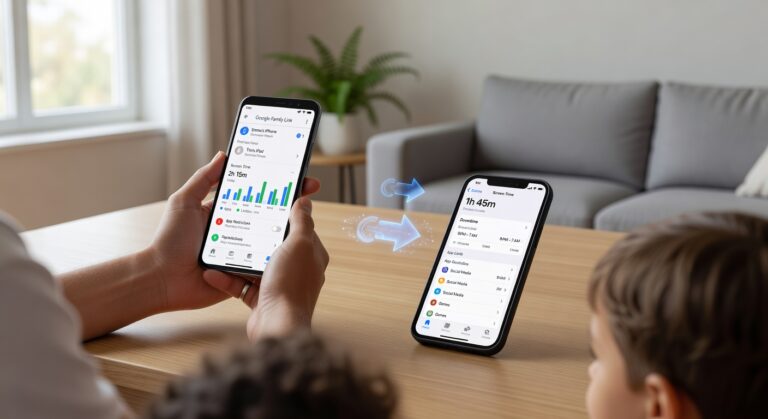
So what’s the move? Combine network restrictions with device-based tools. If your kid uses an Android device, follow a dedicated Android guide to set up app approvals, screen time limits, Google Play restrictions, and account supervision. Apple household? An iPhone guide walks you through Screen Time, content restrictions, communication limits, and app download controls. Running both layers together gives you far stronger WiFi controls and genuinely better app oversight – not just one or the other.
On top of that, don’t overlook your router. Pull up your router’s admin panel and take a good look at the available router settings. Most routers let you build schedules, pause internet access for specific devices, block domains, and in some cases apply profile-based filters. As household-wide WiFi controls, these features are especially handy for bedtime routines and keeping homework hours distraction-free.
- Lean on phone parental controls for app limits, purchases, and content rules directly on the device.
- Use your router settings to handle device schedules, network pauses, and site blocking at the home level.
- Run both together and you get genuinely complete application management and home internet supervision – no gaps left uncovered.
Pricing and Packages for ParentShield Services
Here’s a quick look at the PRICES AND PACKAGES ParentShield offers. Use the table below to compare plans, billing terms, and what’s included – all in one place. Unless ParentShield tells you otherwise, every quoted price should be taken to include VAT. That means no nasty surprises when your bill arrives, and you can work out your real monthly or annual spend right away.
| Plan | Price | Billing Term | VAT Included | Notes |
|---|---|---|---|---|
| Check ParentShield portal | Varies | Monthly / Annual | Yes, unless stated otherwise | See the portal guide for full package details |
Before you subscribe, take a few minutes to check the portal guide directly. That’s where you’ll find the most up-to-date pricing, package limits, and setup details – so you know exactly what you’re signing up for.
Conclusion: Empowering Parents with Remote Control
Knowing how to turn off a child’s phone remotely gives families instant control right when they need it most. And that matters. Services like ParentShield bring together practical tools and solid remote monitoring capabilities, so parents can respond fast to real risks, cut down on distractions, and help kids build healthier screen habits over time. Used the right way, these features genuinely strengthen child safety – without turning every conversation into a punishment. In today’s world of digital parenting, the goal was never just restriction. It’s smart, consistent guidance built on clear household rules that kids actually understand. By following best practices and picking reliable parental control solutions, you can create a safer mobile environment for your family – and nudge your child toward more responsible phone use, every single day.